

Prerequisites
- Gcore API token with permissions for the operations to perform
- uv package manager installed
- Git for Windows (Windows only) — download from git-scm.com
Step 1. Install Claude Code
- Windows PowerShell
- macOS/Linux
Step 2. Authenticate Claude Code
- Start Claude Code in any directory:
- On first launch, select a color theme and press Enter.
- Enter the login command:
- A browser window opens for authentication. Sign in with a Claude Pro, Max, Team, or Enterprise account.
- If the browser displays an authentication code instead of redirecting automatically, copy the code and paste it into the terminal prompt.
Claude Code requires a paid subscription (Pro, Max, Team, or Enterprise). Free accounts cannot use Claude Code.
Step 3. Configure Gcore MCP Server
The configuration file defines MCP server connections. Add Gcore MCP Server to enable Gcore API access.- Windows
- macOS/Linux
Open the configuration file:
mcpServers section:
your-api-key with the Gcore API token. Save the file.
Step 4. Verify the connection
Restart Claude Code to load the new configuration:gcore-mcp-server with status Connected:
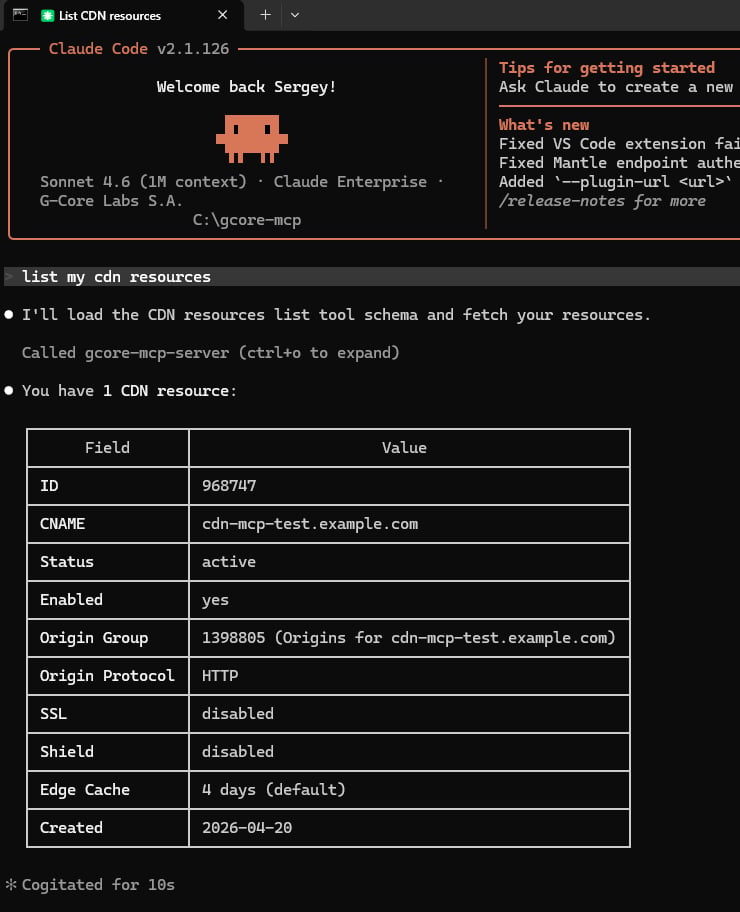
Tool search behavior
When a query mentions a product or operation, Claude Code searches tool names and descriptions for matches, loads schemas for matched tools, and executes the appropriate tool. The query “create a CDN resource” triggers a search forcdn and create patterns, returning only the relevant tool schema rather than loading all tools.
Setting GCORE_TOOLS=* enables all available tools. This configuration is appropriate for Claude Code because schemas load only when needed. Other clients require tool filtering to avoid context window limits.